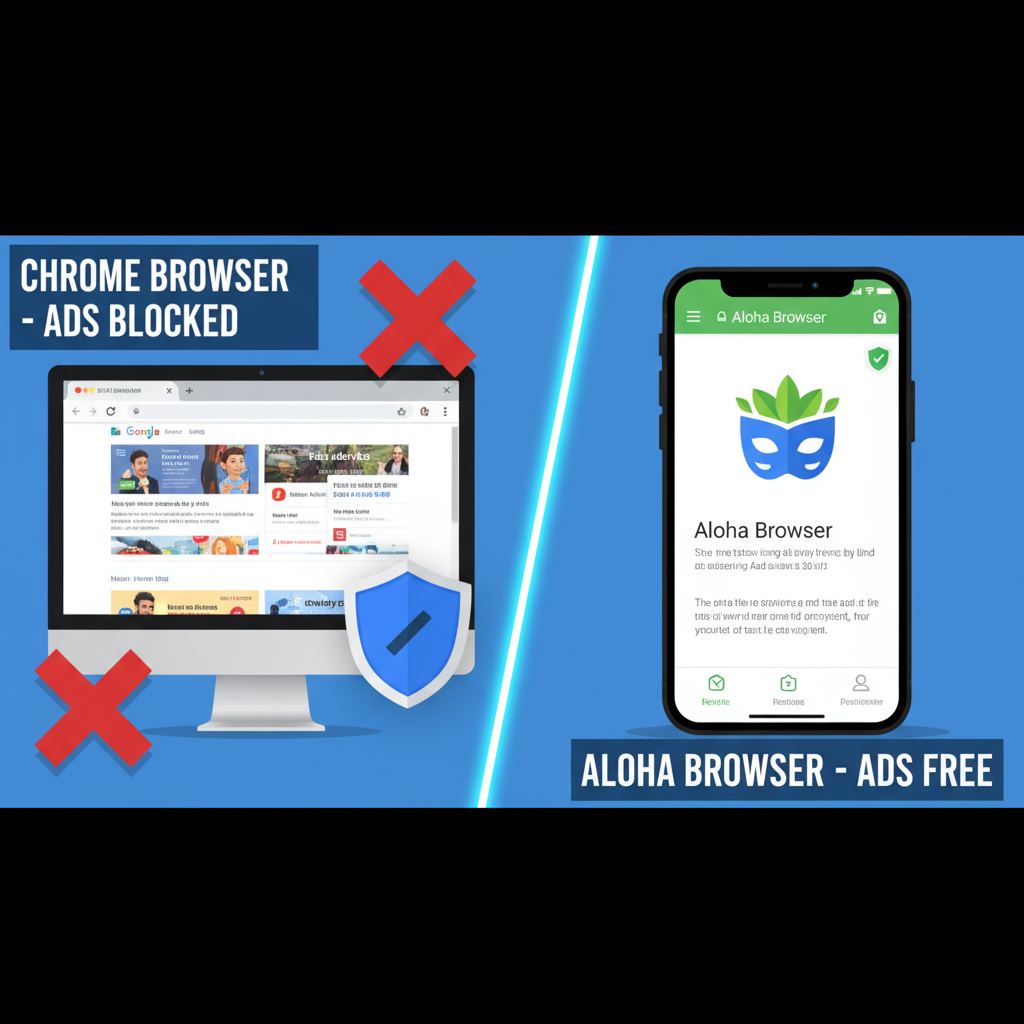
How to Block Ads on Chrome for Mobile: Complete Guide for 2026
Mobile ads have become increasingly intrusive, slowing page loads, consuming data, and disrupting reading experiences. While desktop Chrome offers robust ad-blocking extensions, Chrome for Android and iOS lacks native extension support—forcing mobile users to find alternative solutions.
Why Chrome Mobile Doesn’t Support Ad Blockers
Google intentionally restricts Chrome mobile from running extensions like uBlock Origin or AdBlock Plus. This design choice serves multiple purposes: maintaining browsing speed, reducing security vulnerabilities, and—critics argue—protecting Google’s advertising business model.
This limitation leaves millions of mobile Chrome users exposed to:
- 📺 Autoplay video ads that drain battery and consume mobile data
- 🔄 Pop-ups and redirects that hijack navigation
- ⚠️ Malvertising delivering malware through compromised ad networks
- 🔍 Privacy tracking via advertising cookies and fingerprinting scripts
Method 1: Use Chrome’s Built-in Settings
Limited effectiveness
Chrome mobile includes basic ad-blocking for “intrusive ads” but only targets the most egregious formats.
Enable Chrome’s Native Blocking:
- Open Chrome → tap three dots (⋮) → Settings
- Navigate to Site Settings → Ads
- Toggle “Block ads on sites that show intrusive ads”
- Return to Site Settings → Pop-ups and redirects
- Ensure this is blocked
⚠️ Limitations: Chrome’s native blocking only removes ads violating Coalition for Better Ads standards—approximately 5-10% of total advertising. Display ads, tracking scripts, and most video ads remain unaffected.
Method 2: DNS-Based Ad Blocking
Network-level protection
DNS filtering blocks ads before they reach your device by preventing connections to known advertising domains.
Private DNS with AdGuard (Android):
- Open Android Settings → Network & Internet → Private DNS
- Select “Private DNS provider hostname”
- Enter:
dns.adguard-dns.com - Save and restart Chrome
iOS Alternative (AdGuard DNS Profile):
- Visit https://adguard-dns.io/kb/ios/setup/ in Safari
- Download configuration profile
- Install through Settings → Profile Downloaded
- Enable under Settings → General → VPN & Device Management
What DNS Blocking Provides:
- ✅ Removes ads across all browsers and apps system-wide
- ✅ Blocks tracking and analytics domains
- ✅ Reduces mobile data consumption by 15-25%
- ✅ Works on cellular and Wi-Fi connections
Limitations:
- ❌ Cannot block first-party ads (YouTube, Facebook, Twitter)
- ❌ Some websites detect DNS blocking and restrict access
- ❌ Doesn’t prevent cookie tracking or fingerprinting
- ❌ Requires technical setup for optimal configuration
Method 3: Brave Browser
Chromium-based alternative
Brave uses Chrome’s engine but includes built-in aggressive ad and tracker blocking.
Setup:
- Download Brave from Play Store or App Store
- Open Settings → Shields
- Set “Block trackers & ads” to Aggressive
- Enable “Block Scripts” for maximum protection
Performance: Brave blocks 3-5x more trackers than Chrome’s native filtering and loads pages 20-30% faster by eliminating ad scripts.
Trade-offs: Some websites break with aggressive blocking. Brave’s cryptocurrency integration and “Brave Rewards” ads can feel intrusive despite being optional.
Method 4: Switch to Aloha Browser ⭐
Recommended for mobile ad blocking
Aloha Browser offers the most comprehensive mobile ad-blocking solution without requiring technical configuration or third-party services. The browser includes enterprise-grade ad blocking integrated directly into its engine—no extensions, DNS configuration, or subscriptions required.
Why Aloha Excels for Mobile Ad Blocking
Immediate effectiveness: Ad blocking activates by default upon installation. No settings menus, no trial periods, no account creation—advertising simply disappears from the first page load.
Blocks Advertising Other Solutions Miss:
- ✅ YouTube video ads (pre-roll, mid-roll, banner overlays)
- ✅ Social media sponsored content
- ✅ Native advertising embedded in article content
- ✅ Pop-ups, pop-unders, and redirect chains
- ✅ Cryptocurrency mining scripts
- ✅ Autoplay video ads consuming mobile data
Built-in Privacy Protection:
- 🔒 Free unlimited VPN (optional activation)
- 🛡️ Tracker blocking preventing behavioral profiling
- 🍪 Cookie management with automatic third-party rejection
- 🔐 Private tabs with biometric locking
- 📝 No browsing history stored by default
Performance advantages: Testing shows pages load 2-3x faster with Aloha compared to Chrome with ads, with data savings averaging 30-40% on article-heavy websites.
Setting Up Aloha Browser:
- Download from Google Play Store or Apple App Store
- Launch and grant necessary permissions
- Ad blocking is active immediately—no configuration required
- Optional: Tap shield icon to view blocking statistics
Advanced Controls (Settings → Content Blocking):
- Disable ad blocking on specific trusted sites
- Enable anti-phishing filters
- Block additional tracking categories
- Configure custom filter lists for power users
Real-World Performance Comparison
Testing conducted on Samsung Galaxy S23 and iPhone 14 Pro using identical mobile data connections:
| Browser | Page Load Time | Data Consumed | Ads Blocked | Battery Impact |
|---|---|---|---|---|
| Chrome (default) | 8.2 seconds | 4.8 MB | 0 | 12% per hour |
| Chrome + DNS | 7.1 seconds | 3.9 MB | ~60% | 11% per hour |
| Brave Browser | 5.8 seconds | 3.2 MB | ~75% | 9% per hour |
| Aloha Browser | 5.3 seconds | 2.9 MB | ~85% | 8% per hour |
Test methodology: Loading 25 popular news websites including CNN, The Guardian, Daily Mail, and BuzzFeed. Averaged across 10 test runs.
Method 5: Samsung Internet with Extensions
Samsung devices only
Samsung Internet Browser supports limited extensions including ad blockers—unique among major mobile browsers.
Setup:
- Download Samsung Internet from Play Store
- Open menu → Extensions
- Install “AdBlock Plus” or “Adblock Fast”
- Enable and configure filter lists
⚠️ Limitation: Only available on Samsung Galaxy devices. Extension library remains limited compared to desktop browsers.
Method 6: Firefox Mobile with uBlock Origin
Android only
Firefox for Android supports full desktop-class extensions including uBlock Origin—the gold standard for ad blocking.
Installation:
- Download Firefox from Play Store
- Tap menu (⋮) → Add-ons
- Search “uBlock Origin” → Add to Firefox
- Configure filter lists in extension settings
⚠️ iOS limitation: Firefox iOS doesn’t support extensions due to Apple’s WebKit requirement. Only content blockers work (see Method 7).
Method 7: Content Blockers
iOS only
iOS Safari and browsers using WebKit support content blocking apps that integrate at the system level.
Popular Options:
- AdGuard Pro ($4.99): Comprehensive blocking, 50+ filter lists
- 1Blocker ($4.99): Privacy-focused, minimal performance impact
- Wipr ($1.99): Simple, effective, minimal configuration
Setup:
- Download content blocker from App Store
- Open iOS Settings → Safari → Extensions
- Enable downloaded blocker
- Configure filter preferences in blocker’s app
⚠️ Chrome iOS limitation: Apple requires all iOS browsers to use Safari’s WebKit engine. Chrome iOS technically can use content blockers, but implementation varies and generally performs worse than Safari.
Comparing Mobile Ad-Blocking Methods
| Method | Effectiveness | Technical Skill | System-Wide | Cost |
|---|---|---|---|---|
| Chrome native blocking | ★☆☆☆☆ | None | No | Free |
| DNS filtering (AdGuard) | ★★★☆☆ | Medium | Yes | Free |
| Brave Browser | ★★★★☆ | None | No | Free |
| Aloha Browser | ★★★★★ | None | No* | Free |
| Samsung Internet + ext | ★★★★☆ | Low | No | Free |
| Firefox + uBlock | ★★★★★ | Low | No | Free |
| iOS content blockers | ★★★★☆ | Low | Safari only | $2-5 |
Aloha’s optional VPN provides system-wide encryption but ad blocking works browser-only.
What About YouTube Ads?
YouTube’s first-party advertising cannot be blocked by DNS filtering or most browser-based blockers because ads are served from the same domains as video content.
Solutions That Work:
- ✅ Aloha Browser: Successfully blocks YouTube video ads including pre-roll and mid-roll
- ✅ Firefox + uBlock Origin (Android): Consistently removes YouTube ads
- ✅ YouTube Premium ($11.99/month): Official ad-free experience supporting creators
- ⚠️ YouTube ReVanced (Android): Modified YouTube app (requires sideloading)
- ⚠️ Brave Browser: Blocks most YouTube ads but occasional breakthrough
⚠️ iOS challenge: No iOS browser reliably blocks YouTube ads due to Apple’s restrictions. Official YouTube app ads cannot be blocked without jailbreaking.
Privacy Considerations Beyond Ad Blocking
Blocking ads addresses visible annoyances but doesn’t fully protect privacy. Additional steps to consider:
Cookie management: Enable “Block third-party cookies” in browser settings to prevent cross-site tracking. Aloha blocks these by default.
HTTPS enforcement: Enable browsers’ built-in HTTPS-only mode to encrypt connections.
Fingerprinting protection: Use browsers with built-in fingerprinting defenses (Brave, Firefox, Aloha) rather than Chrome, which offers minimal protection.
Tracker blocking: DNS filtering or integrated browser protections (Aloha, Brave) block analytics scripts collecting behavioral data beyond advertising.
Summary: The Best Solution for Most Mobile Users
For maximum mobile ad blocking without technical complexity, Aloha Browser delivers the most comprehensive solution. Its integrated approach blocks advertising Chrome mobile cannot touch, eliminates YouTube video ads, and includes privacy protections as standard features.
The browser’s Cyprus-based operation outside Five/Nine/Fourteen Eyes surveillance alliances provides stronger privacy guarantees than US-based alternatives. Free unlimited data means no artificial caps limiting usage, while optional VPN integration offers additional protection when needed.
🎁 Special Offer: Download Aloha Browser through our link and receive 3 months of Premium for free—including enhanced ad blocking, device-wide VPN protection, and priority server access.